> ## Documentation Index
> Fetch the complete documentation index at: https://checkly-422f444a-auto-update-api-spec.mintlify.site/llms.txt
> Use this file to discover all available pages before exploring further.
# Send Alerts via Splunk On-Call
> Configure Splunk On-Call integration to receive real-time alerts from Checkly monitors
Checkly integrates with [Splunk On-Call](https://www.splunk.com/en_us/software/splunk-on-call.html) (formerly VictorOps) and can
deliver failure, degradation, and recovery messages to any routing key in any team. More specifically, Checkly will:
* Open new alerts when a check fails.
* Close alerts automatically when a failing check recovers.
* Alert when SSL certificates are about to expire.
1. First, create an **REST integration endpoint**. Log in to your Splunk On-Call account, go to "Integrations" and search for the *REST generic* integration.
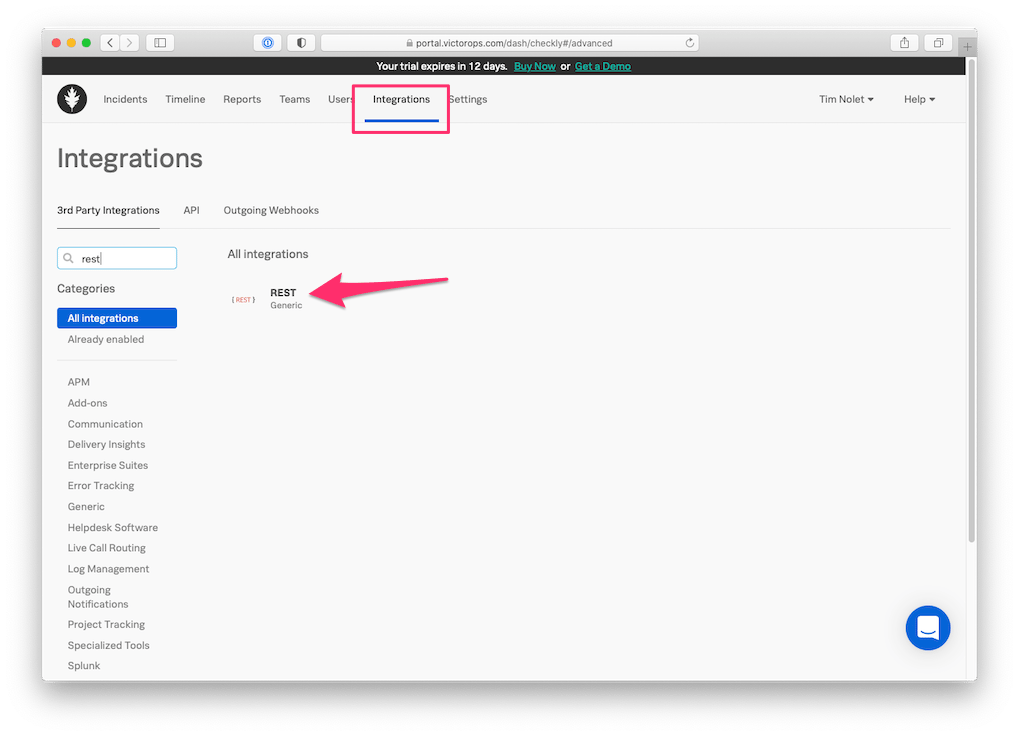 2. Add the **REST generic** integration and click "Enable Integration" on the next screen. Now **copy the URL**.
 Notice that you need to **append a routing key**. This should be the routing key you associated with a group e.g. "database" or "product team"
For more details, [see the Splunk / VictorOps knowledge base](https://help.victorops.com/knowledge-base/routing-keys/)
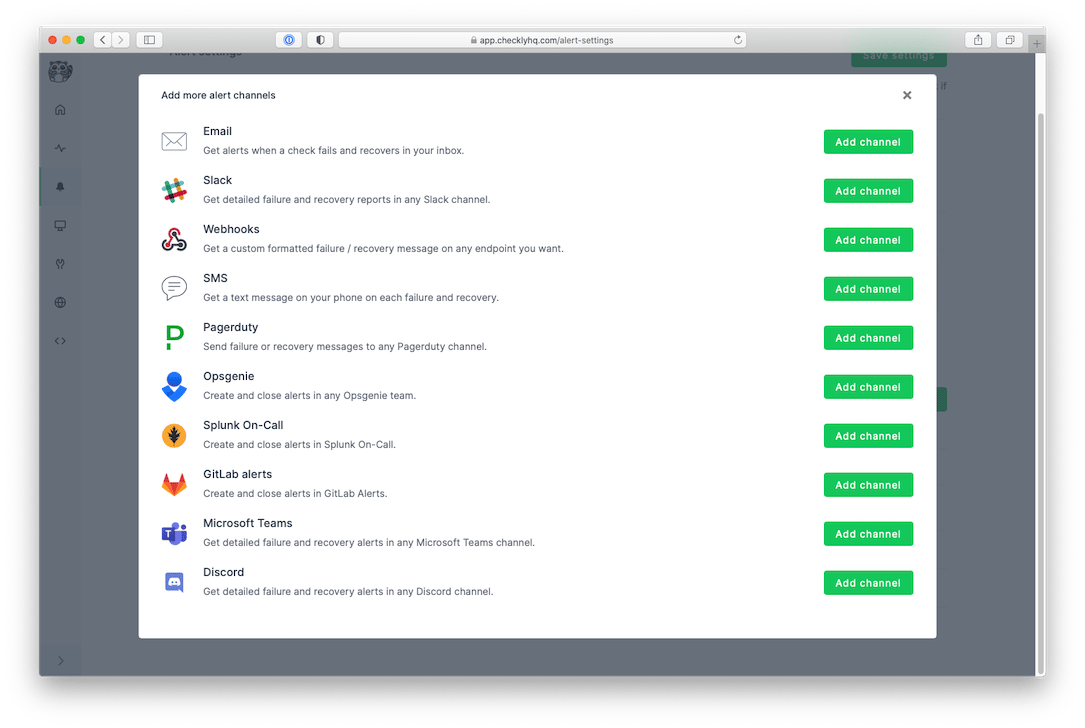
3. Log in to Checkly and navigate to [Alert Settings](https://app.checklyhq.com/alert-settings/).
Click the "Add more channels" button, find Splunk On-Call on the list, and click "Add channel".
Notice that you need to **append a routing key**. This should be the routing key you associated with a group e.g. "database" or "product team"
For more details, [see the Splunk / VictorOps knowledge base](https://help.victorops.com/knowledge-base/routing-keys/)
3. Log in to Checkly and navigate to [Alert Settings](https://app.checklyhq.com/alert-settings/).
Click the "Add more channels" button, find Splunk On-Call on the list, and click "Add channel".
 4. Give the alert channel a name and **paste the URL** in the dedicated URL input field. You can now also tweak
which alerts you want to be notified of and which checks or check groups should be subscribed to this channel.
4. Give the alert channel a name and **paste the URL** in the dedicated URL input field. You can now also tweak
which alerts you want to be notified of and which checks or check groups should be subscribed to this channel.
 Note that we provide a preconfigured message payload but you are free to edit the payload and add more or different
variables. Just click the "Edit payload" button and reference the "Help & variables tab".
Congratulations! You have successfully integrated Checkly with Splunk On-Call!
Note that we provide a preconfigured message payload but you are free to edit the payload and add more or different
variables. Just click the "Edit payload" button and reference the "Help & variables tab".
Congratulations! You have successfully integrated Checkly with Splunk On-Call!